Hey everyone, thanks for stopping by. Today I’m gonna break down something that I get asked about all the time—how to hook up an IO Trigger Line to a display device. I’m not here to do a fancy tech lecture, just real, hands-on stuff from being an IO Trigger Line supplier for the last six years. Most folks I talk to (whether they’re hobbyists building custom setups, small businesses putting together trade show displays, or tech teams prototyping new gear) get stuck on the little messy parts that don’t show up in basic tutorials. That’s why I wanted to lay this out like I’d walk a buddy through it, no jargon overload, no confusing repeats. IO Trigger Line

First, let’s start with what actually matters before you even grab a screwdriver or a cable. A lot of people skip this step and end up wasting an hour troubleshooting something super avoidable. First, you need to know two things clearly: what kind of IO Trigger Line you have, and what inputs your display uses. I’ve seen so many folks grab a random IO trigger line from a bin and then panic when the pins don’t match their 4K display. Let’s keep this simple—IO Trigger Lines are basically just wired signals that send a “trigger” (like a 5V pulse or a ground change) to make something happen on the display: turn it on, switch inputs, play a video, even turn off after a set time.
First, identify both ends. Let’s start with your display. Most modern displays (smart screens, trade show monitors, even some digital signage) have a few common control ports. The big ones you’ll see are USB (usually USB-B for older displays, USB-C for new ones) and 3.5mm jacks. Wait, yeah—some consumer displays use a 3.5mm “trigger in” for basic on/off triggers, that’s the little jack next to the HDMI and power, not the headphone jack! Don’t mix those up, I’ve had so many customers show me they plugged the trigger into the audio jack and nothing worked. The other common one is GPIO pins on industrial displays or embedded screens—those are the tiny, numbered pins along the edge of the display’s circuit board, usually with labels like GND, 5V, Trigger In.
Now your IO Trigger Line. As a supplier, we stock two main types that work for 90% of setups: the 3.5mm mono trigger cable, and the GPIO pigtail cable. The 3.5mm one is super simple—one end is the 3.5mm plug that fits the display’s trigger in, the other end is bare wires or a small connector for your trigger source (like a microcontroller, motion sensor, or our standard IO trigger module). The GPIO pigtail is for when you’re working with industrial displays that don’t have the 3.5mm jack, it’s a set of 3-4 matching pins that plug straight into the display’s GPIO header.
Wait, let’s talk about matching voltage—this is the #1 mistake I see. If you send 12V to a display that only takes 5V, you’re gonna fry the trigger input, guaranteed. Our IO Trigger Lines are labeled clearly with voltage ratings, but I always tell people to double-check their display’s specs. You can usually find this in the display’s manual under “control signals” or “trigger inputs.” It’ll say something like “accepts 3.3V-5V TTL signals.” If it doesn’t have the manual, a quick Google search for your display model + trigger input specs works, just make sure you’re getting the exact page from the manufacturer, not a random forum post. Pro tip: if you’re using our IO trigger modules, they’re default set to 5V which works for 80% of consumer and mid-range displays, so that’s a safe bet.
Okay, now let’s get into the step-by-step. I’m gonna use the most common setup first: 3.5mm IO Trigger Line to a consumer display (like a trade show monitor or a kitchen digital screen). This is what 70% of our customers use, so it’s the one you’ll probably need.
Step 1: Power off everything. I don’t care how much of a rush you are—pull the plug on the display, unplug your trigger source (if it’s a separate module, motion sensor, etc.). Working with live power is how you nick a pin or short something, and that’s when things break. Trust me, I’ve been there when I was a newbie tech, no fun.
Step 2: Locate the trigger input on your display. Like I said earlier, ignore the audio jack. It’ll be labeled something like “TRIG IN,” “CONTROL,” or sometimes “RS232 IN” (wait, RS232 is another one, but if it’s a 3.5mm jack, it’s trigger, not RS232). If you still can’t find it, pull out the manual or check the display’s back panel—usually all the control ports are grouped together.
Step 3: Prep your IO Trigger Line. If it’s a pre-made cable (which is what we supply, so you don’t have to solder most of the time), just check the ends. One end is the 3.5mm plug, that’s your display end. The other end—let’s confirm: most of our 3.5mm trigger cables have a single bare wire (or two, if it’s for ground) for the trigger source. Wait, let’s make it crystal clear: the 3.5mm TRS jack has three parts, but trigger uses just two: the tip is the signal (trigger) and the ring is ground. The sleeve is unused for basic triggers. So that means the tip of the 3.5mm plug connects to your trigger source’s signal pin, and the ring connects to ground.
Step 4: Connect the trigger source. Let’s say you’re using our basic IO trigger module (super common for this setup). The module has two output pins: Signal and GND. Take the 3.5mm IO Trigger Line, strip about ¼ inch of insulation off the end of the wires (most pre-made cables have pre-stripped ends now, but double-check). Twist the Signal wire from the IO cable to the Signal pin on the module, and the GND wire from the IO cable to the GND pin on the module. If you’re using a microcontroller like Arduino, same thing—connect IO cable Signal to Arduino’s digital pin (say, pin 2) and IO cable GND to Arduino’s GND.
Step 5: Plug the other end into the display’s trigger in jack. Push it in firmly until it clicks—don’t force it, if it won’t go in, you’ve got the wrong jack, don’t bend the pins.
Step 6: Power everything on. First the display, then the trigger source. Now test it. If you set the trigger to “on pulse” (most basic modules send a 1-second pulse when activated), the display should turn on, switch inputs, whatever you programmed it to do. If it doesn’t work, don’t panic—9 times out of 10 it’s one of three things: you mixed up Signal and GND, you used the wrong jack on the display, or the voltage is off. Let’s run through the quick checks: double-check the wires, make sure the 3.5mm is in the right jack, confirm your trigger source voltage matches the display’s trigger rating. That’s usually it.
Now, what if you’re working with an industrial display or a small embedded screen that doesn’t have a 3.5mm jack? That’s where the GPIO pigtail IO Trigger Line comes in. This is for the more advanced setups—like digital signage in a retail store that triggers when someone walks by, or a prototype gaming display that switches inputs automatically. Let’s walk through that, same no-fuss style.
First, same pre-step: confirm the GPIO pins on your display. Most GPIO headers are labeled with small text next to each pin. You’ll need three pins: GND (ground), TTL Trigger In, and VCC (optional, if your trigger source needs power from the display). Important: don’t mix up VCC and GND—if you connect VCC to GND by accident, you’ll short the circuit and break the display or your trigger line. Our GPIO pigtails are color-coded to avoid this: red is VCC, black is GND, white is Signal, so that’s a big help.
Step 1: Power off everything, again. Same rule applies.
Step 2: Locate the GPIO header on your display. It’s a row of small, round pins, usually on the back of the display’s circuit board, sometimes covered by a small plastic cover. The manual will show a pinout diagram here, that’s non-negotiable for GPIO setups.
Step 3: Align the IO Trigger Line’s pigtail with the display’s GPIO pins. Since ours are color-coded, match the wire color to the pin label. Red to VCC, black to GND, white to Trigger In. Don’t force it—if the pins don’t line up, you’ve got the wrong pigtail (we make different pin counts, like 3-pin and 4-pin, so confirm before you order).
Step 4: Secure the connection. A lot of people leave these loose, which causes intermittent triggers. You can use a small piece of electrical tape to hold the pigtail in place, or use a breadboard jumper if that’s easier for your setup.
Step 5: Power on and test. Same as before—send a trigger pulse, confirm the display reacts. If it’s intermittent, check if the pigtail is loose, or if there’s a bad connection between the wires and the pins.
Wait, what about common problems that pop up even after you do everything right? Let’s list the quick fixes I hand out to every customer who reaches out to me about this. First, if your trigger is working sometimes but not always: check for bad ground connections. A lot of folks don’t connect the GND wire properly, so the signal drops out. Second, if the display is triggering on its own, even without input: that’s usually a loose Signal wire, or static electricity—touch the metal part of the display’s circuit board to discharge static before you work on it, that fixes half the random trigger issues. Third, if the trigger activates but does the wrong thing (like turns the display on when you want it to play a video): that’s a setting on the display, not the trigger. Most displays have a control menu where you can set what the trigger signal does—go into the display’s settings, look for “trigger control” or “external control” and toggle it to the right function.
Now, let’s talk about custom setups, because I get a lot of requests for that too. Like, if you have a super niche display that uses a different trigger protocol—RS232, HDMI CEC, even USB trigger. Wait, we don’t just do basic 3.5mm and GPIO lines, we make custom IO Trigger Lines for those too. A lot of suppliers will just send you a one-size-fits-all cable, but as someone who’s been doing this, I know custom makes all the difference. For example, if you have a commercial digital display that uses HDMI CEC for external triggers, we can build an IO Trigger Line that converts a standard 5V pulse to a CEC command that makes the display play your ad or switch inputs. Same thing for RS232 setups for trade show floor displays that need to sync with other gear. The key here is to send us the display model and what specific trigger function you need, and we’ll build the right line so you don’t have to mess around with adapters that cause lag.
Wait, let’s clear up a common myth a lot of people have: “I need fancy software to connect an IO Trigger Line to a display.” No, not for basic setups. A 5V pulse is just a simple electrical signal, you don’t need to install drivers or write a program unless you’re doing something super complex, like syncing 10 displays at once. For 95% of use cases—small businesses, hobbyists, trade show setups—hardwiring the trigger line is plug-and-play with the right cable, no extra software needed. That’s a huge relief for people who don’t want to deal with tech headaches.
Now, a quick note on matching the right IO Trigger Line for your setup. I know it’s tempting to grab the cheapest cable on Amazon, but here’s the thing: cheap cables use thin wire that can break easily, or mislabeled voltage ratings. When we make our IO Trigger Lines, we use 24AWG stranded wire that’s flexible enough to handle repeated moves (perfect for trade shows) and we test every cable for voltage resistance, so you don’t fry your display. Also, we offer different lengths—from 1 foot for desktop setups to 25 feet for large retail displays hanging from ceilings—so you don’t have extra cable hanging around that gets in the way.
Let me wrap this up with a quick recap to make sure you didn’t miss anything: 1) Confirm your display’s trigger input type (3.5mm or GPIO) and voltage rating. 2) Power everything off before connecting. 3) Match the IO Trigger Line’s wires/pins to the display and trigger source (use color-coding or pin labels to avoid mix-ups). 4) Test with a 1-second trigger pulse to make sure it works. 5) If it doesn’t, check ground, jack/pin alignment, and voltage first before messing with anything else.
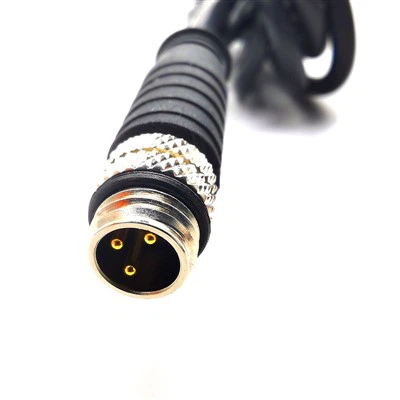
If you’re still stuck, or you need a custom IO Trigger Line that fits a specific display or project, feel free to reach out to us for a consultation. We don’t just sell cables—we help you figure out what you need, even if it’s not a standard product. No pushy sales stuff, just real advice from people who build these lines every day.
Infiniband Series Camera Link HS Cable References:
- Flat Panel Display Manufacturers Association. External Trigger Signal Specifications for Commercial Displays. 2022.
- National Electrical Manufacturers Association. Guide to Low-Voltage Trigger Connections for Digital Signage. 2021.
- Embedded Systems Design. Best Practices for GPIO Signal Routing in Industrial Display Interfaces. 2023.
- Audio and Video Industries Association. Standardized 3.5mm Trigger Jack Pinout for Consumer Displays. 2020.
Karobert Technology LLC Karobert Trading PTE. LTD.
We’re known as one of the most professional io trigger line manufacturers and suppliers in China, also support customized service. Please feel free to buy high quality io trigger line made in China here from our factory. For price consultation, contact us.
Address: 6250 S 196th St, Kent, WA, 98055, USA.
E-mail: karl@karobert-us.com
WebSite: https://www.karobert-us.com/
